
How to find exactly what changed between two CSV files
You exported the same report last week and again today. Something changed, but scrolling through a thousand rows by eye is not going to find it. This guide explains how to use the CSV Compare tool to line up two files, name a key column, and get a clear list of every row that was added, removed or edited - field by field, not line by line.
The problem this solves
Any system that lets you export data will give you a snapshot at the moment you press the button. Export again a day later and you have two snapshots. The question is always the same: what moved?
A customer list where three people changed address. A product catalogue where prices went up on eight items. A student roster where two names dropped out and one was added. In each case you need the exact rows and the exact fields, not a vague sense that something looks different.
Opening both files side by side in a text editor shows you that line 347 is different, but it does not tell you which column changed or what the old value was. A proper comparison does.
Pasting the two files
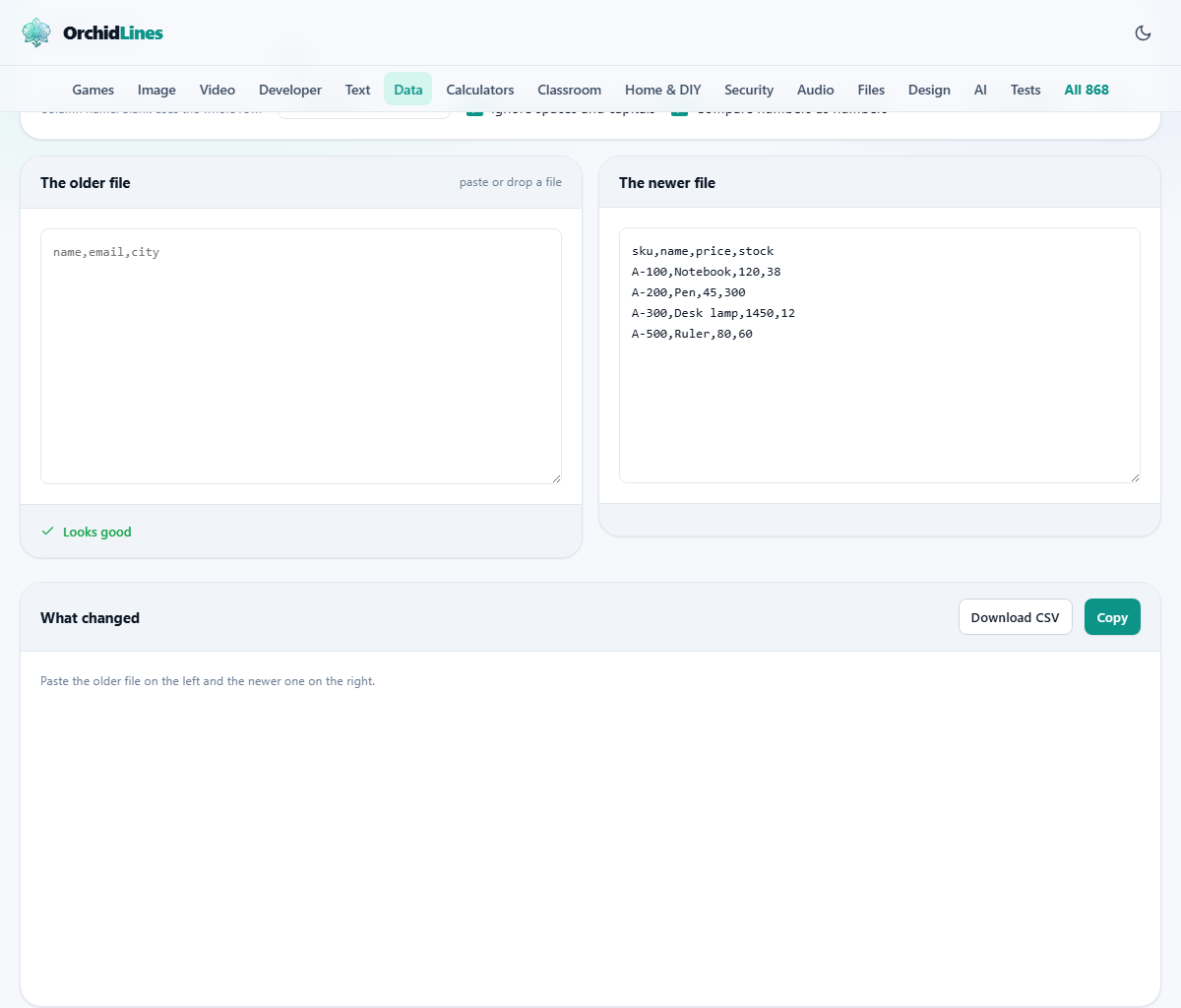
The page has two text boxes. The left one, labelled The older file, is the baseline. The right one, labelled The newer file, is the version you want to compare against. Order matters: the older file goes on the left so the tool can say which rows are new and which were removed.
Paste your CSV text straight into each box. You can also drag a file onto either box. If your data uses semicolons or tabs instead of commas, that is fine - the separator is detected on each side separately. The two files do not even need to use the same separator.
Why the key column changes everything
The Identify rows by field at the top asks for the name of the column that makes each row unique. This is the most important setting on the page.
Without a key, the tool compares whole rows. A row whose price changed from 10 to 12 looks like the old row was deleted and a new row was added. With a thousand rows and three price edits, you get six entries that look unrelated - three removals and three additions. That is technically correct, but not useful.
With a key column set to something like id or email, the tool matches rows across the two files by that value. Now the same three edits show as three changed rows, and for each one you see the column name, the old value and the new value. If your data has a product code, a student number, an email address or any kind of unique identifier, type its column name into this field.
A worked example with a small customer list
Last week your customer file looked like this: id, name, city with rows 1 Alice London, 2 Bob Paris, 3 Carol Tokyo. This week the file reads: id, name, city with rows 1 Alice Berlin, 2 Bob Paris, 4 Dan Seoul.
Paste the first version in The older file box and the second in The newer file box. Type id into the Identify rows by field. The result appears instantly.
Row 1 is flagged as changed. The detail says city went from London to Berlin. Row 3 is flagged as removed - Carol is gone. Row 4 is flagged as added - Dan is new. Row 2 is unchanged and appears with no highlight if the Show filter is set to Everything.
Change Show to Only changes and only row 1 appears. Change it to Only removed rows and you see only Carol. Each filter helps when you have thousands of rows and only care about one kind of difference.
Handling numbers that look different but are not
A value written as 1,200 in one file and 1200 in the other is the same number. Without help, the tool would flag every such row as changed.
The Compare numbers as numbers checkbox, ticked by default, solves this. When it is on, values that are both valid numbers are compared by their numeric value, so formatting differences like thousands separators or trailing zeros do not count as changes.
The Ignore spaces and capitals checkbox strips leading and trailing whitespace and compares text without caring about upper or lower case. This stops London and london from showing as a change when the underlying value is the same. Both of these options are on by default because false differences are more annoying than missed ones.
When the columns themselves change
Sometimes the newer file has a column that the older one did not, or a column was dropped between exports. The tool reports this as a schema change, separate from the row-level differences.
Column order does not matter. If the older file has the columns id, name, city and the newer file has city, name, id, that is not reported as a change. Fields are matched by their heading, not their position. This means a reordered export is compared correctly without any manual adjustment.
Duplicate keys and what to do about them
If your key column has the same value in more than one row, the tool warns you. There is no reliable way to decide which copy of row 5 in the old file matches which copy of row 5 in the new file. The result may pair them incorrectly.
The fix is to use a key that is genuinely unique. If no single column qualifies, you can sometimes combine two columns - paste them together in a new column before comparing. For example, first name plus last name, or date plus transaction reference. Even a rough combination is far better than no key at all.
Downloading the differences
Press Download CSV to save the results as a CSV file. The file contains the key, the change type (added, removed, changed or unchanged depending on your filter), and the detail of every field that differs. You can open this in a spreadsheet and filter or sort it there.
Press Copy to put the same information on your clipboard as text, ready to paste into an email or a document. Both outputs include enough context to understand each change without going back to the original files.
Common mistakes and fixes
Every row shows as changed. This almost always means you left the key column blank. Without a key, any change to any field makes the whole row count as different. Set the key and the noise drops away.
Numbers that should match are showing as changes. Turn on Compare numbers as numbers. A price of 9.90 and 9.9 are the same number but different strings.
The two files have different column names. The tool matches by heading, so if one file says Price and the other says price, those are different headings unless you tick Ignore spaces and capitals. Rename the column in one file if the names are truly different.
Practical uses beyond simple data checks
Inventory managers compare a Monday export with a Friday export to see which stock levels dropped. Accountants compare this month's chart of accounts with last month's to catch new entries. Teachers compare two versions of a class roster to see who enrolled and who withdrew. HR teams compare an old employee list with a current one to build a list of leavers.
In every case the workflow is the same: paste the older file, paste the newer file, type the key column, and read the summary. The results can be downloaded and filed as an audit trail. Because the comparison runs locally, it can be used with confidential data without seeking approval from an IT department.
When to reach for something else
This tool compares structured data row by row. If you need a line-by-line text diff like a code review tool provides, it is the wrong fit. If your files are not CSV but XML or JSON, convert them to CSV first or use a format-specific comparison tool.
It is also built for reasonably sized files. Tens of thousands of rows work well. If you regularly compare files with millions of rows, a command-line tool designed for streaming will handle the volume better.
Privacy and where the files stay
Both files are read and compared entirely inside your browser. Nothing is sent to any server. You could paste confidential customer data, salary tables or medical records and none of it would leave your machine. The page works offline after it has loaded, and there is no account, no history, and no log of what you compared. This is especially useful in workplaces where data must not cross a network boundary. The comparison happens in the same browser tab where you pasted the data, and once you close the tab everything is gone.