
How to make a quick chart from pasted numbers and download it as an image
Sometimes you need a chart in the next two minutes. Not a dashboard, not a live report - just a clean picture of a few numbers for a slide, an email or a class assignment. This guide walks through every setting on the Chart Maker page, shows you how to set up your data, and covers the mistakes that trip people up most often.
When a quick chart beats a spreadsheet
Spreadsheets are powerful, but opening one just to draw a bar chart of five numbers is slow. You wait for the program to load, paste your data, hunt for the insert-chart menu, fight the default style, then export. Half the time the image comes out too small or has a watermark.
This tool skips all of that. You paste a small table, pick bar, line or pie, and the chart appears on the right. One button gives you a PNG you can drop straight into a presentation or a document. There is nothing to install, no account to make, and no watermark on the downloaded image.
Teachers preparing lesson slides, students finishing homework at midnight, small-business owners updating a monthly report, freelancers quoting progress to a client - these are the people who benefit most. If your data fits in a dozen rows, this is faster than anything else.
How to arrange the data you paste
The left box expects a small table. The first row holds the column headings. The first column holds the labels for each row. Every other cell is a number.
Here is a concrete example. Suppose you want a chart of quarterly sales for two products. Your data would look like this:
- Quarter, Widget A, Widget B
- Q1, 120, 95
- Q2, 145, 110
- Q3, 130, 140
- Q4, 160, 155
Pasting from a spreadsheet or typing by hand
If your numbers are already in Excel or Google Sheets, select the cells and copy. The clipboard gives tab-separated text, which the page reads without any change. You do not need to save as CSV first.
If you are typing from scratch, separate values with commas. Spaces after the comma are fine. You can also use a tab character if you prefer, or a semicolon. The page figures out which separator you are using.
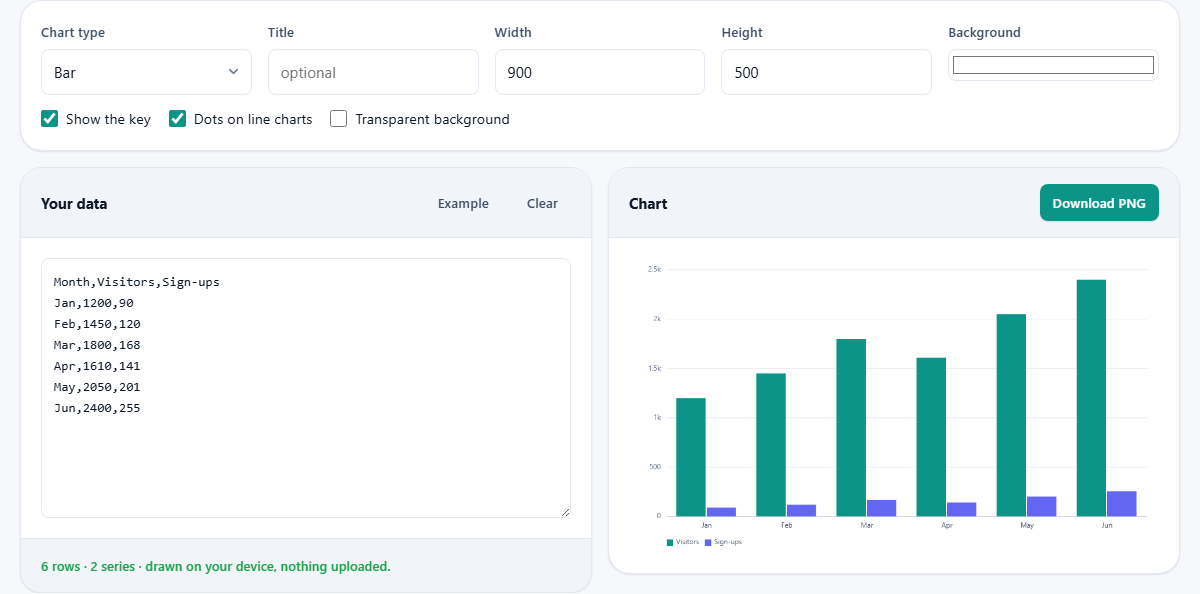
Press the Example button to load a ready-made table. It fills the left box with sample data and draws the chart instantly, which is a good way to see the layout the page expects before you paste your own numbers.
Choosing the right chart type for your numbers
The Chart type dropdown at the top offers four options: Bar, Line, Pie and Doughnut.
Bar is the default and works best when your labels are categories that do not follow a time sequence. Regions, products, departments, colours - anything where the order on the axis does not imply a trend. Each label gets its own bar, and if you have more than one number column, the bars sit side by side in groups.
Line is the right pick when the labels are points in time. Months, years, dates. The line connecting one point to the next shows a trend, and that connection only makes sense when the labels have a natural order. Drawing a line through unrelated categories - say Apple, Berlin, Table - is misleading because it suggests a path that does not exist.
Pie shows parts of a whole. It uses only the first number column and ignores any others. Keep it to six slices or fewer. Beyond that, the thin wedges become hard to tell apart and a bar chart would be clearer.
Doughnut is a pie with an empty centre. It carries the same limits. Some people find it easier to read because the arc lengths are more obvious than wedge angles.
Setting the title, size and background
The Title field is optional. Whatever you type appears centred above the chart. Leave it empty for no title at all.
Width and Height set the real pixel size of the downloaded PNG. The default is 900 by 500 pixels, which suits most slides. For a phone screen you might drop to 600 by 400. For a printed poster you could go up to 3000 by 2000. Set these before you download, because resizing a PNG afterwards makes it blurry.
The Background colour picker defaults to white. Click it to choose any colour. If the chart is going onto a slide that already has a background, tick the Transparent background checkbox instead. The downloaded PNG will then have no background at all, so it sits cleanly over whatever is behind it.
Show the key controls the legend that names each data series. Turn it off when there is only one series and the meaning is obvious. Dots on line charts places a small circle at each data point. Turn it off for a smoother look when you have many points.
A worked example from paste to download
Suppose a teacher wants to show test scores for three subjects across four classes. She opens the page and pastes this table:
Class, Maths, Science, English followed by rows 8A 72 68 81, 8B 65 74 77, 8C 80 71 85, 8D 58 63 70.
The chart appears on the right immediately as a grouped bar chart. She changes Chart type to Line and sees the scores connected. That looks odd because classes are not a time series, so she switches back to Bar.
She types Test scores - Year 8 into the Title field. She changes the Width to 1200 and the Height to 700 because her slide template is wider than usual. She picks a light blue from the Background picker to match the slide.
She clicks Download PNG. A file lands in her downloads folder, 1200 by 700 pixels, with her title on top. She drags it onto the slide and it is done. Total time: about thirty seconds.
Why the axis numbers are rounded up
If your biggest value is 47, the axis does not stop at 47. It goes up to 50. This is deliberate. People reading a chart need the grid lines at nice round numbers so they can judge the height of a bar at a glance. An axis marked 0, 11.75, 23.5, 35.25, 47 is harder to use than one marked 0, 10, 20, 30, 40, 50.
Every serious charting tool does the same thing. The step is rounded to the nearest one, two, two and a half or five times a power of ten. That means the chart may extend a little above your tallest bar, which is the expected behaviour.
Common mistakes and how to fix them
The chart is blank. Your data probably has no numbers, or the first row is missing. Make sure the first row is headings and every cell after the first column contains a number.
All the bars are the same height. You may have pasted values as text with currency symbols or commas. Remove any dollar signs, euro signs or thousands separators so each cell is a plain number like 1200, not $1,200.
The pie chart ignores my second column. That is correct behaviour. A pie can only show one set of values. Switch to a bar chart if you have more than one series.
The downloaded image is tiny. The Width and Height fields control the actual pixel size. If you left them at the default and then stretched the image on a slide, it will be blurry. Go back and set them to the size you actually need.
When this tool is not the right choice
This is built for the quick case. If you need interactive hover tooltips, a live connection to a database, or more than about fifty data points, you need a spreadsheet or a dedicated charting library. If you need to style individual bars with different colours or add annotations to specific points, the Chart Maker does not offer that level of control.
It also does not handle dates on the axis. Labels are treated as plain text, so a gap in your dates will not show as a gap on the chart. For time-series work with irregular spacing, a spreadsheet handles it better.
Multiple data series and the legend
Every column after the first one becomes a separate series. If your table has three number columns, a bar chart draws three bars per label and a line chart draws three lines. The legend, controlled by the Show the key checkbox, tells the reader which colour belongs to which heading.
Keep series names short. A heading like Total revenue including returns for fiscal year 2024 will crowd the legend. Revenue 2024 says the same thing in a chart context and leaves room for the actual bars.
Privacy and where your data stays
Nothing you paste is sent to any server. The chart is drawn inside your browser using the numbers you typed. You can disconnect from the internet after the page loads and it will still work. The downloaded PNG is created on your device and never touches a network. There is no tracking of what you paste, no account, and no stored history.