
Turning a spreadsheet of links into a printable sheet of labelled QR codes
Making one QR code is quick. Making fifty is tedious unless you have a tool that reads a list and produces them all at once. This article explains how the bulk QR generator works, walks through every setting on the page, and covers the printing and sizing rules that decide whether a code actually scans when someone holds a phone up to it.
When you need a batch of QR codes
A restaurant prints table tent cards and each table gets its own ordering link. A warehouse labels bins with codes that point to the inventory record for that bin. An event planner hands out badges with a unique check-in link per guest. A school creates a poster wall where each poster links to a different student project.
In every case someone has a list of values - URLs, product IDs, or ticket numbers - and needs a QR code for each one. Doing them one at a time means pasting a value, generating a code, downloading the image, renaming it, and repeating. This tool takes a CSV, reads one column, and gives you every code at once, either as a printable sheet or a ZIP of individual PNG files.
Preparing your CSV
The file needs a header row. One column should hold the values you want to encode. That might be full URLs, short codes, product IDs, or any text up to a few hundred characters. A second column should hold a human-readable label for each code - a table number, a product name, or a person's name. The label appears printed below each code on the sheet so you can tell them apart at a glance.
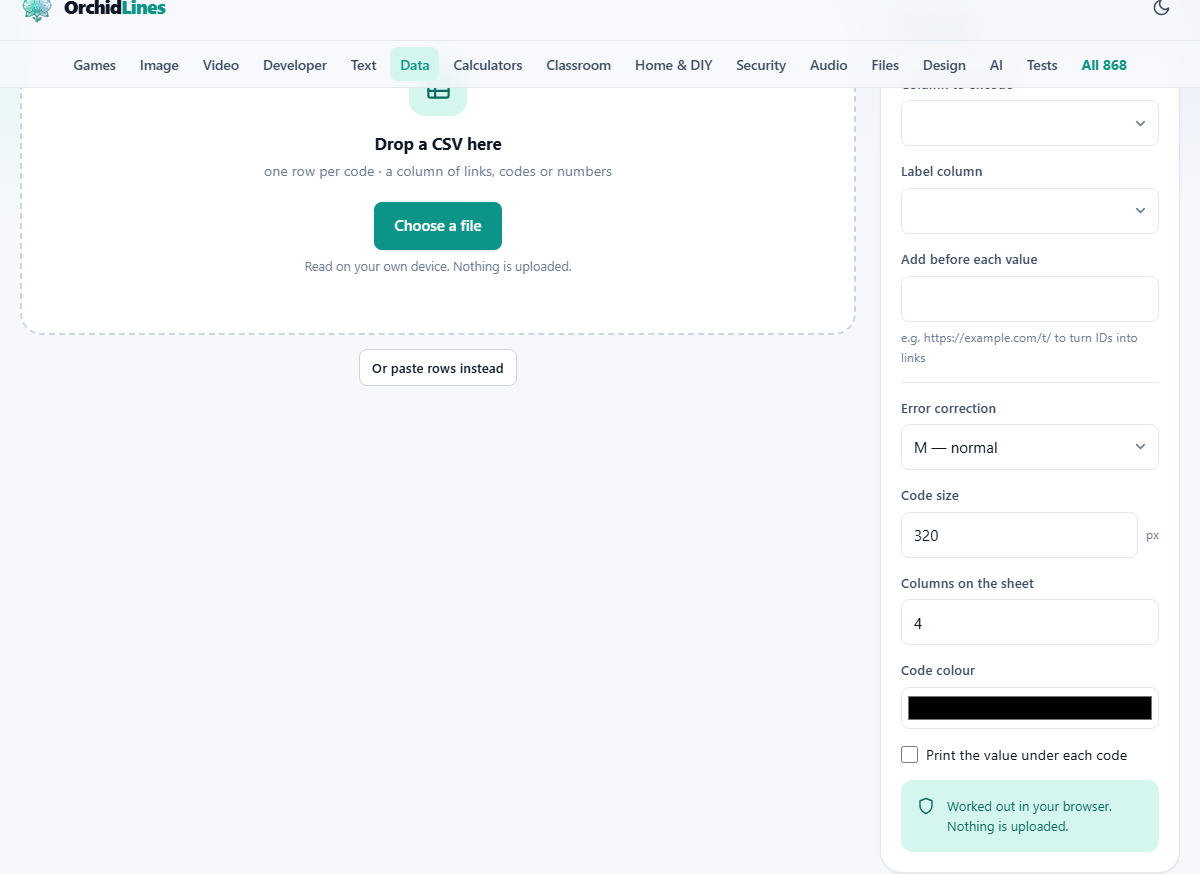
Drop the CSV file onto the page, or press Choose a file. You can also press Or paste rows instead to type or paste rows directly into a text box. The tool reads the file on your device. Nothing is uploaded.
Choosing the right columns
Once the file is loaded, two dropdowns appear in the side panel. Column to encode selects which column holds the data to put inside each QR code. Label column selects which column holds the text to print beneath each code on the sheet.
If your CSV has only one column, that column is used for both. If it has several, pick carefully. Encoding the wrong column gives you codes that scan to the wrong values, and you would only discover the mistake after printing.
The prefix trick for turning IDs into full URLs
The Add before each value field is one of the most useful controls on the page. Suppose your spreadsheet has a column of product IDs: 1001, 1002, 1003. You want each code to point to a full URL like https://shop.example.com/p/1001. Instead of editing the spreadsheet to add the base URL to every row, type https://shop.example.com/p/ into the prefix field. The tool puts that text before each value when it builds the code.
This keeps your spreadsheet clean and makes it easy to change the base URL later. If you move to a new domain, change the prefix and regenerate. The spreadsheet stays the same.
Error correction and what each level means
The Error correction dropdown has four levels. L makes the smallest code but is the least forgiving. A smudge or a scratch can stop it from scanning. M is the default and handles minor damage. Q is better for print, where ink can bleed or the paper can fold. H survives the most damage and is the one to pick if you plan to stick a logo over part of the code.
Higher error correction makes the code pattern denser. More modules are packed into the same square. If you print at a small size, a dense code may become hard for a phone camera to resolve. Pair higher correction levels with a bigger print size to be safe.
Sizing and layout controls
Code size sets the pixel dimensions of each code image. The default is 320 pixels, which is fine for on-screen previews and standard label printing. Raise it for large posters. Lower it for tiny sticker sheets.
Columns on the sheet controls how many codes sit side by side in each row. The default is four. Raise it to fit more codes per page. Lower it to give each code more room. When you print the sheet, these columns determine the grid layout on the paper.
Code colour changes the dark modules of each code from the default black to any colour you choose. Use this for brand-coloured codes. Keep the contrast high - a light pastel on white paper will not scan reliably. Dark colours on a light background are always the safest choice.
Print the value under each code is a checkbox that adds the encoded value as small text beneath the code, in addition to the label. This helps when you want to verify at a glance what a code contains without scanning it.
Getting the output
There are two ways to get your codes. Print the sheet opens the browser print dialogue, which strips the page interface and shows only the codes in a grid with their labels. Print it directly, or save it as a PDF from the print menu. This gives you a single page or set of pages with every code laid out and ready to cut.
Download all as ZIP produces a zip file containing one PNG per code. Each file is named after its label. This is the option to pick when you need to place individual codes into other designs, such as product packaging files or event badges.
Worked example: table tent cards for a restaurant
You run a small restaurant with twenty tables. Each table has a number from 1 to 20. You want a QR code on each table that opens a menu page at https://myrestaurant.com/menu?table=1 through table=20.
Open a spreadsheet and make two columns: table_number with values 1 through 20, and label with values Table 1 through Table 20. Export it as a CSV and drop it onto the page.
Set Column to encode to table_number. Set Label column to label. In Add before each value type https://myrestaurant.com/menu?table= so each number becomes a full URL. Set Error correction to Q because the cards will be handled by guests and may get food on them. Set Code size to 320 and Columns on the sheet to 4.
The sheet preview shows twenty codes in five rows of four. Each code has its label beneath it. Press Print the sheet, print onto card stock, and cut along the edges. Each table now has its own scannable code.
Printing tips that prevent scanning failures
Size matters more than anything else. A code printed at one centimetre across will not scan reliably with most phone cameras. Two centimetres works for close-up scanning like table tents. Five to ten centimetres works for posters scanned from a short distance. Anything meant to be scanned from a metre or more away needs to be very large.
Always test one code before printing the whole batch. Print a single sheet at the final size, on the final paper stock, and scan it with an ordinary phone at the distance and angle people will actually use. If it scans, print the rest. If it does not, increase the size or raise the error correction level.
A note about URL shorteners
It is tempting to shorten every URL before encoding it. A shorter URL makes a simpler, smaller QR code. But if the shortening service you use shuts down or changes its terms, every printed code becomes a dead link. You cannot update a QR code that is already on a poster or a product label. Use a domain you control. If you need to change the final destination later, set up a redirect on your own server.
Your links stay on your own device
Many bulk QR services see every URL you feed them. Those URLs often include unpublished product pages, private event links, or internal systems. This tool generates every code inside your browser using the site's own encoder. Nothing is uploaded. Your list of links is never sent anywhere. You could disconnect from the internet after the page loads and the tool would still work.