
How to replace personal details in a spreadsheet with realistic fake data
Sharing a real customer export with a developer, a tester, or a support forum usually means someone sees names, email addresses, and phone numbers they should not see. This article explains how the data anonymiser detects personal columns, replaces them with convincing fakes, and keeps the data usable for testing and debugging. A worked example shows the full process from paste to download.
Situations where you need safe data
A developer asks for a sample of the production database to reproduce a bug. You cannot hand over real customer records. A product manager wants to build a demo with realistic rows. A student needs test data for a class project but has no real dataset to start from.
In each case the shape of the data matters more than the actual names and numbers. You need rows that look real, sort the right way, and have the right mix of long and short values. But the specific people in those rows should not be identifiable. That is what this tool does. It finds the columns that hold personal information and swaps them with made-up values that still look right.
Getting data into the tool
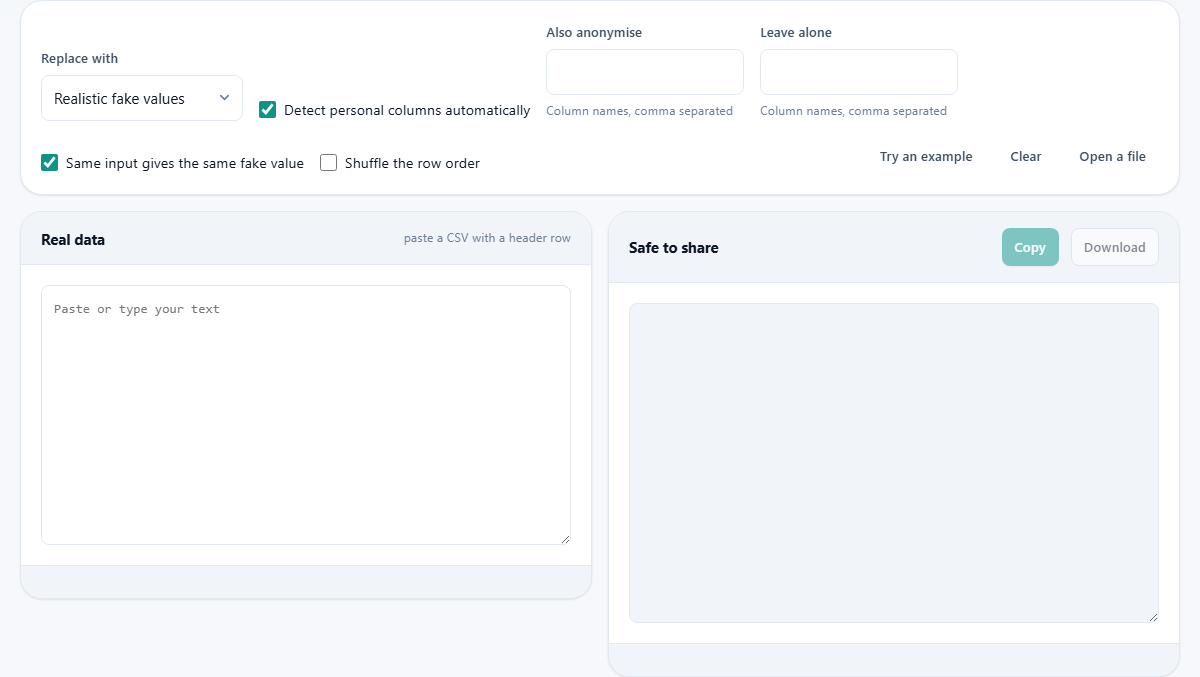
Paste a CSV with a header row into the Real data box on the left side of the page. The first row should be column names. The tool uses those names, along with the pattern of the data itself, to guess which columns contain personal details.
You can also press Open a file to load a CSV from disk, or press Try an example to see a sample dataset that shows the tool in action. The Clear button empties both panes and resets every setting.
The output appears in the Safe to share pane on the right. It updates live as you change settings. You can copy or download the result once you are happy with it. The Copy button puts the cleaned CSV on your clipboard, and the Download button saves it as a file.
How the detection works
With Detect personal columns automatically ticked, the tool looks at both the column names and the values. A column called email or phone_number is obvious. But it also checks the content. A column full of values that match the pattern of an email address gets flagged even if the column name is something vague like contact_info.
The detection covers names, email addresses, phone numbers, street addresses, dates of birth, and long digit strings that look like account or card numbers. It will not catch everything. A free-text notes column might hold a name buried in a sentence. The tool cannot read prose for personal details, so you should check those columns yourself.
Adding or removing columns from the replacement list
The Also anonymise field lets you type column names that the detection missed. Separate them with commas. If you know a column holds something sensitive that the auto-detection did not catch, add it here.
The Leave alone field is the opposite. If the detection flagged a column that you actually need to keep in its original form, type its name here and it will be left untouched. This is useful when a column called name actually holds product names rather than people's names, and you want the real product names in the output.
The four replacement modes
The Replace with dropdown offers four ways to handle the personal values. Realistic fake values is the default. It replaces each name with another name, each email with another email, and so on. The fakes look real, which is exactly what you want for testing. A system that displays names in a table will show sensible names rather than blank cells or random characters.
Masked characters keeps the same length and shape but replaces letters with other letters and digits with other digits. This is useful when you want to see that a phone number has ten digits or that an account number has a certain format, without seeing the real value.
A short consistent code replaces each value with a short hash-like string. Every unique input gets a unique code. This is compact and works well when you just need to tell rows apart without seeing anything that looks like real data.
Nothing simply blanks the field. This is the most aggressive option and is useful when you do not need the column at all but want to keep the rest of the row structure intact.
Consistent replacement and why it matters
The Same input gives the same fake value checkbox is ticked by default. When it is on, every time a particular real email appears in the file, it becomes the same fake email. This matters a lot for testing. If one customer placed five orders, those five rows should still point to one fake customer. If each appearance got a different fake value, the five orders would look like they came from five different people, and the bug you were trying to reproduce might vanish.
Turn this off only when you specifically do not want any relationship between rows. For most testing and demonstration uses, leave it on.
Shuffling the row order
The Shuffle the row order checkbox rearranges the rows into a random order. This adds another layer of protection. Even if someone recognises a combination of values in a single row, shuffling means the rows no longer match the original sequence. Combined with fake names and emails, it makes linking back to the source file very difficult.
Leave it off when the order matters for your test, such as when the data is sorted by date and you need to check that a report displays dates in sequence. For most one-off sharing tasks, ticking it adds a useful extra step of separation between the output and the original.
Worked example: cleaning a customer export for a bug report
You export a CSV of fifty orders from your admin panel. It has columns for order_id, customer_name, email, phone, address, product, quantity, and total. You want to paste a sample into a bug report without exposing real customer details.
Paste the CSV into the Real data box. The status bar shows that customer_name, email, phone and address were detected as personal. Order_id, product, quantity and total are left alone. That looks correct.
Leave Replace with on Realistic fake values. Leave Same input gives the same fake value ticked. The Safe to share pane on the right now shows the same fifty rows, but every name is a different made-up name, every email is a fake address, and every phone number is a random string of digits. The order_id, product, quantity and total columns are unchanged.
Press Copy to grab the cleaned CSV, or press Download to save it as a file. Paste it into your bug report. The developer can see the row structure, reproduce the sorting issue, and never learn who the real customers are.
Limits of automatic anonymisation
Replacing obvious columns is a strong start, but it is not a legal guarantee. Small datasets can identify people through combinations of leftover fields. A rare job title, a small town, and a specific age bracket together might point to only one person even after the name and email are gone.
Free-text fields like notes, comments, or descriptions can hold personal details embedded in sentences. The tool does not parse natural language. Read through those columns yourself before sharing the output.
This tool is not a substitute for legal advice on data protection. It is a practical step that removes the most obvious risks, and for many situations that is enough. For formal compliance work, consult someone who specialises in your jurisdiction's rules.
Your data never leaves your browser
The entire process runs on your own device. The CSV you paste is processed in the browser's memory and is never sent to any server. The mapping between real and fake values exists only while the page is open. Close the tab and it is gone forever. There is no account, no upload, and no record of what you pasted. This is especially important here, because the whole point of the tool is to protect sensitive information. Sending that same data to a cloud service to be anonymised would defeat the purpose.